Remove an item from your shopping list
Each row in Items has its own Remove button. Use it to delete that ingredient.
Demo URL: https://demo-angular-22-wgdt.free.ccpve.co.za
Before you start
You must be signed in and on the Shopping list page. If Items is empty, add at least one item first (see Add an item to your shopping list).
Steps
Step 1 — Open Shopping list and find the item
- Open the demo URL and sign in (any Email and Password work; use the blue Log in button in the form card).
- Click Shopping list in the header.
- Scroll to Items and find the row you want to delete.
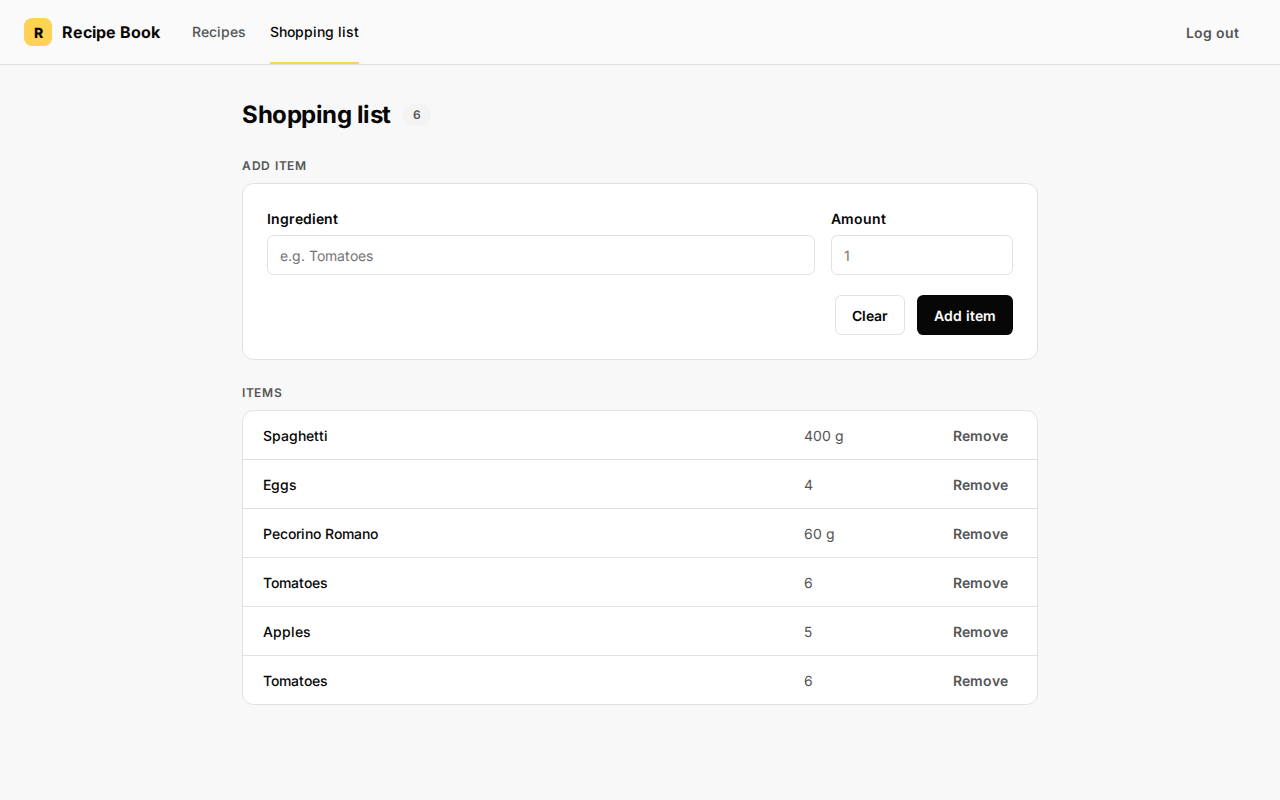
Step 2 — Remove the row
On that row, on the right, click Remove.
The row disappears immediately. Other rows stay.
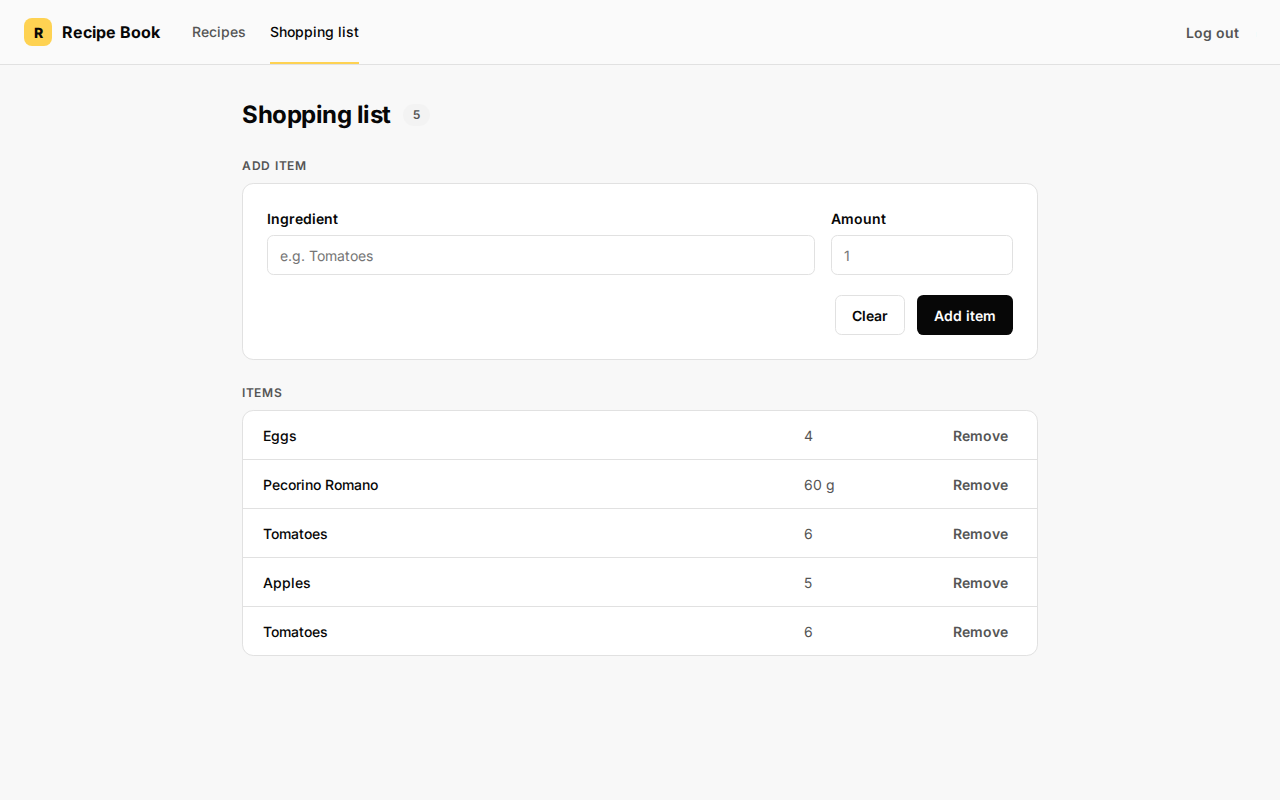
Step 3 — Remove more items (optional)
Repeat Step 2 for every other row you do not want.
When Items has no rows left, you will see the message: Your shopping list is empty.
Tips
- Remove only deletes that one row. It does not clear the whole list at once.
- Refreshing the browser resets the demo list in memory.