Edit a shopping list item
Use Edit when a row is already on the list but the name or amount is wrong.
- To add a new row, see Add an item to your shopping list.
- To delete a row, see Remove an item from your shopping list.
Demo URL: https://demo-angular-22-wgdt.free.ccpve.co.za
Steps
Step 1 — Sign in and open Shopping list
- Open the demo URL and sign in (same as Step 1 in the add-item guide: any Email and Password; use the blue Log in link in the form card).
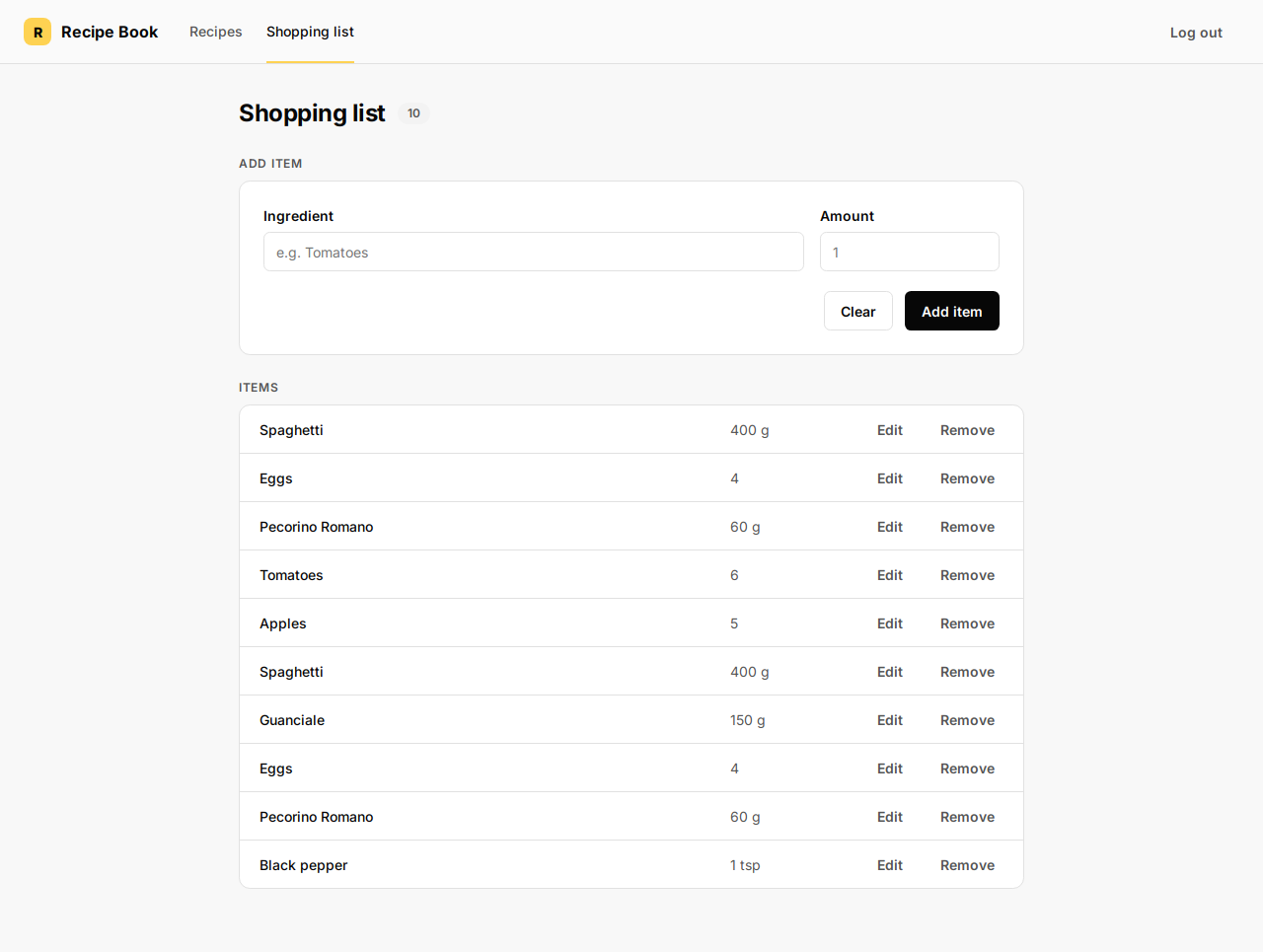
- Click Shopping list in the header.
You see Items with Edit and Remove on each row.
Step 2 — Start editing
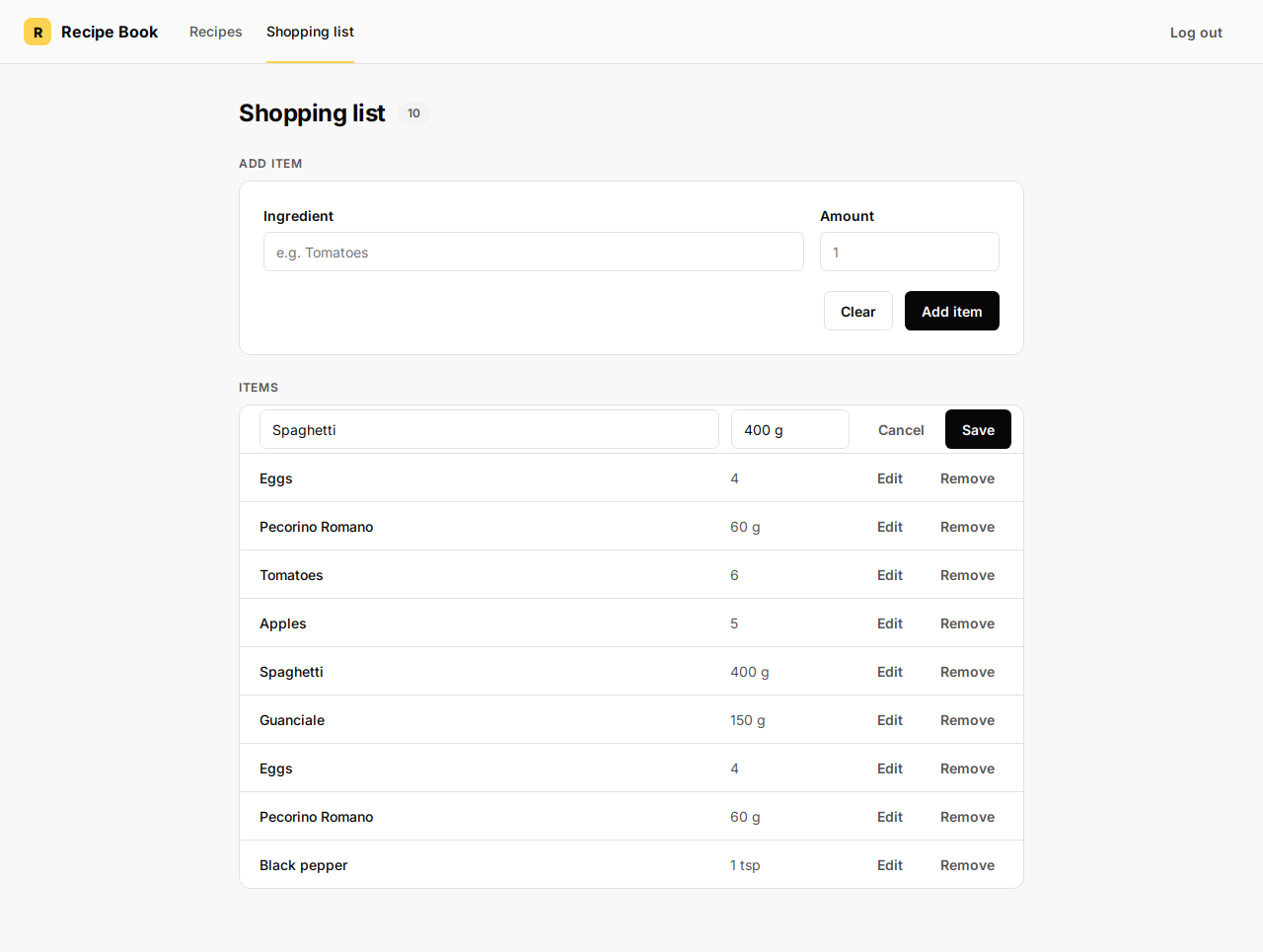
On the row you want to change, click Edit.
The row becomes two fields (Ingredient name and Amount) plus Cancel and Save.
Step 3 — Change name or amount
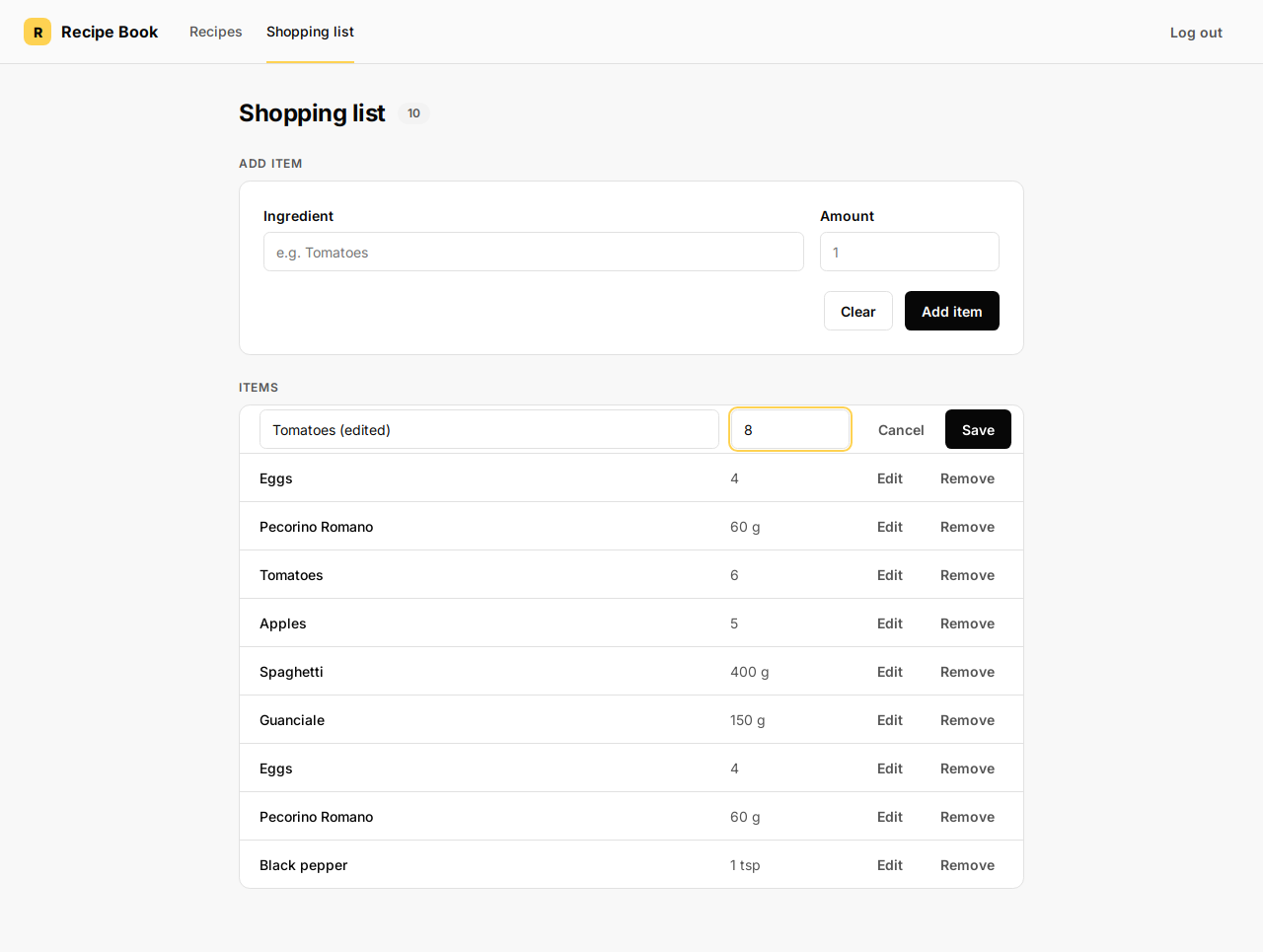
- Click in Ingredient name or Amount and type your changes.
- Do not leave Ingredient name completely empty — Save needs at least one character in the name.
Step 4 — Save or cancel
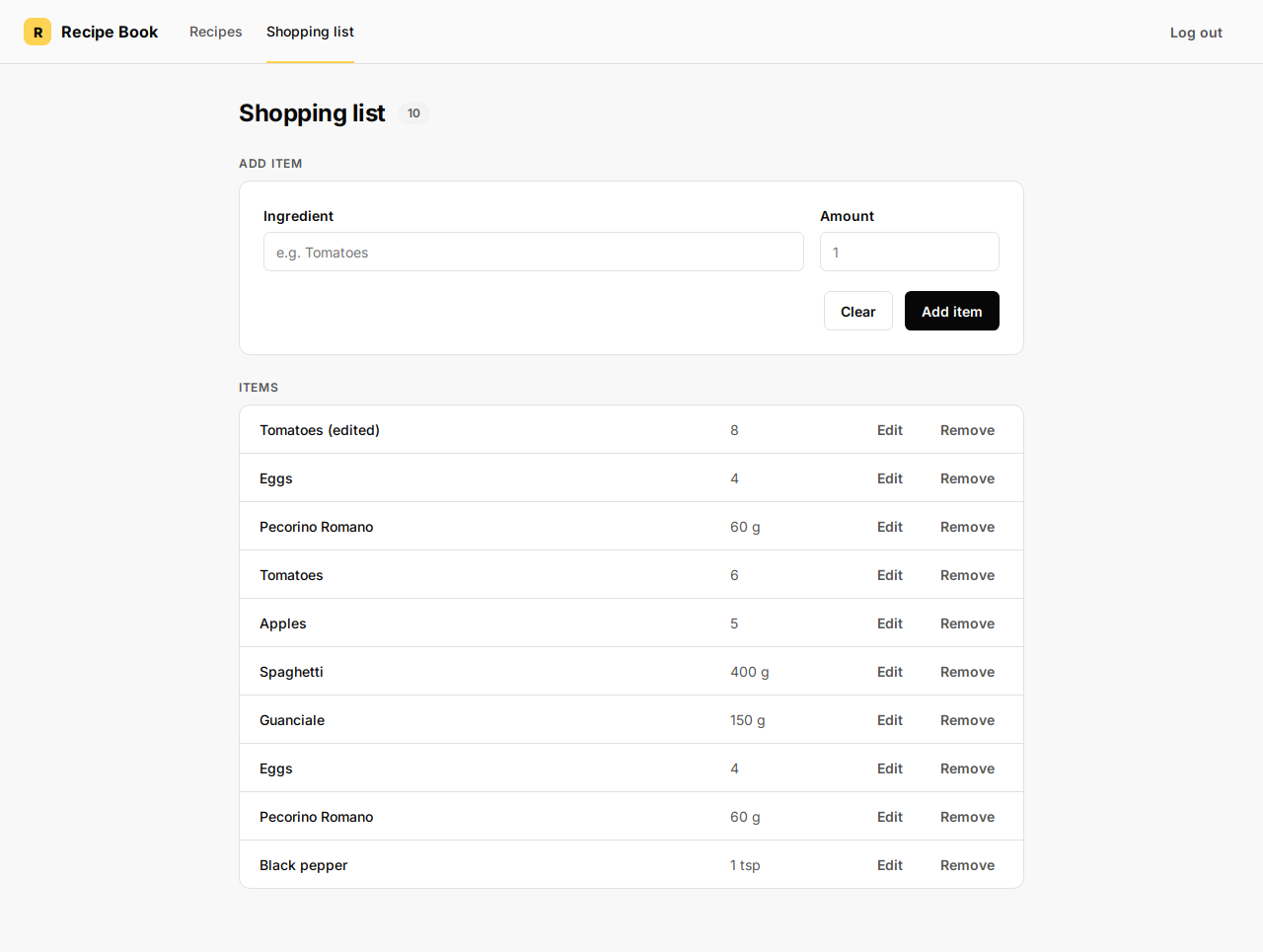
- Click Save to keep your changes. The row shows normal text again.
- Click Cancel to discard changes and keep the old name and amount.
Note: Only one row can be in edit mode at a time. Clicking Edit on another row or Remove closes the current edit without saving unless you already clicked Save.