Add an item to your shopping list
Use this when you want one ingredient on the list. You do not need a recipe.
Demo URL: https://demo-angular-22-wgdt.free.ccpve.co.za
Steps
Step 1 — Open Recipe Book and sign in
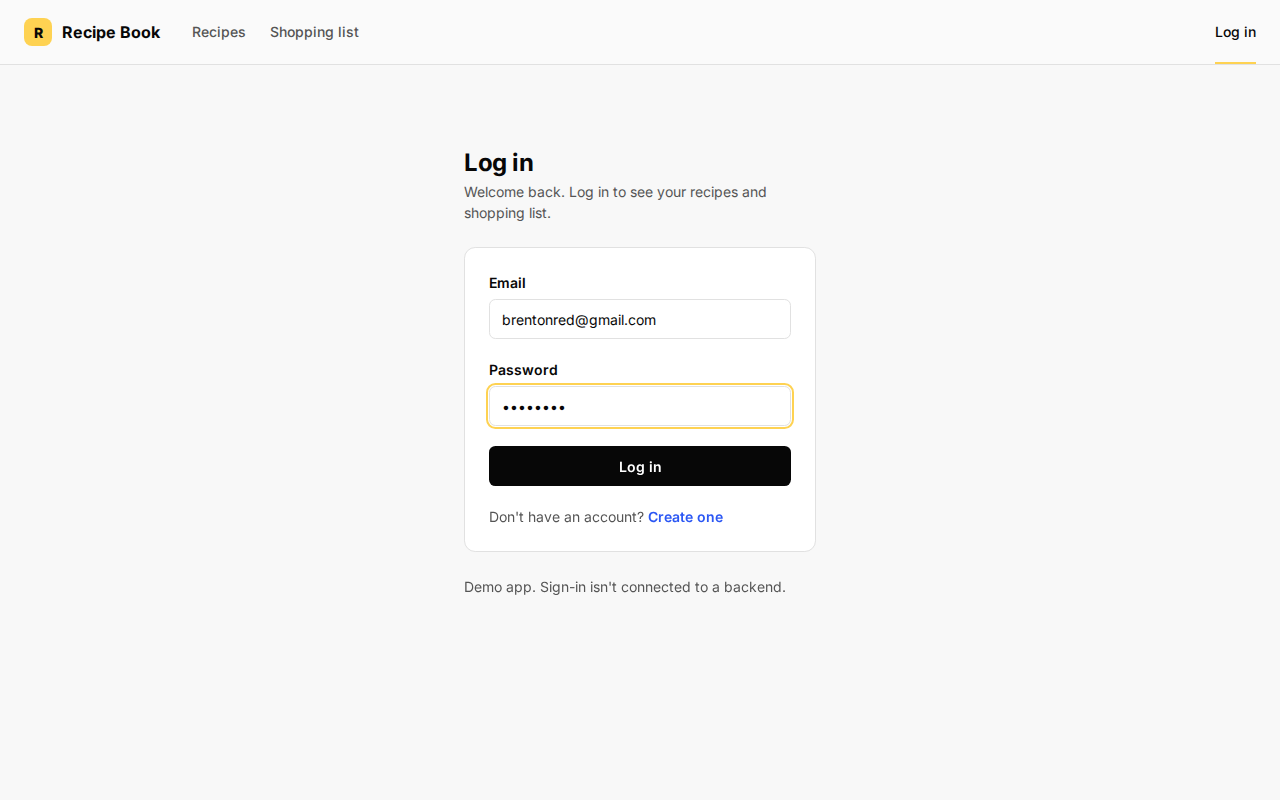
Open the demo URL above. You should see the Log in page.
- Click in the Email box. Type any email (the demo does not check it).
- Click in the Password box. Type any password.
- Click the blue Log in button inside the white card (not the small Log in link in the top-right header).
You should land on the Recipes page.
Step 2 — Go to Shopping list
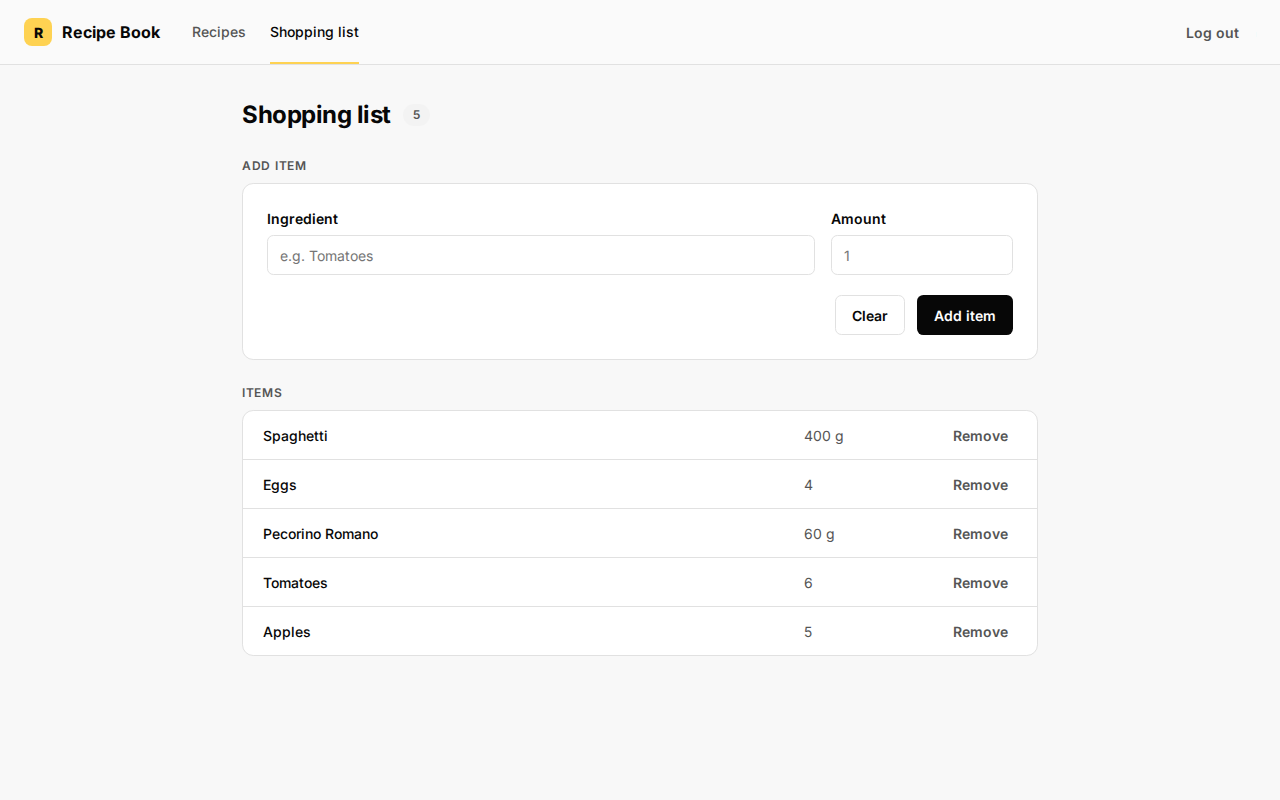
In the top header, click Shopping list (between Recipes and Log out).
You should see the title Shopping list and a form labeled Add item.
Step 3 — Enter an ingredient name
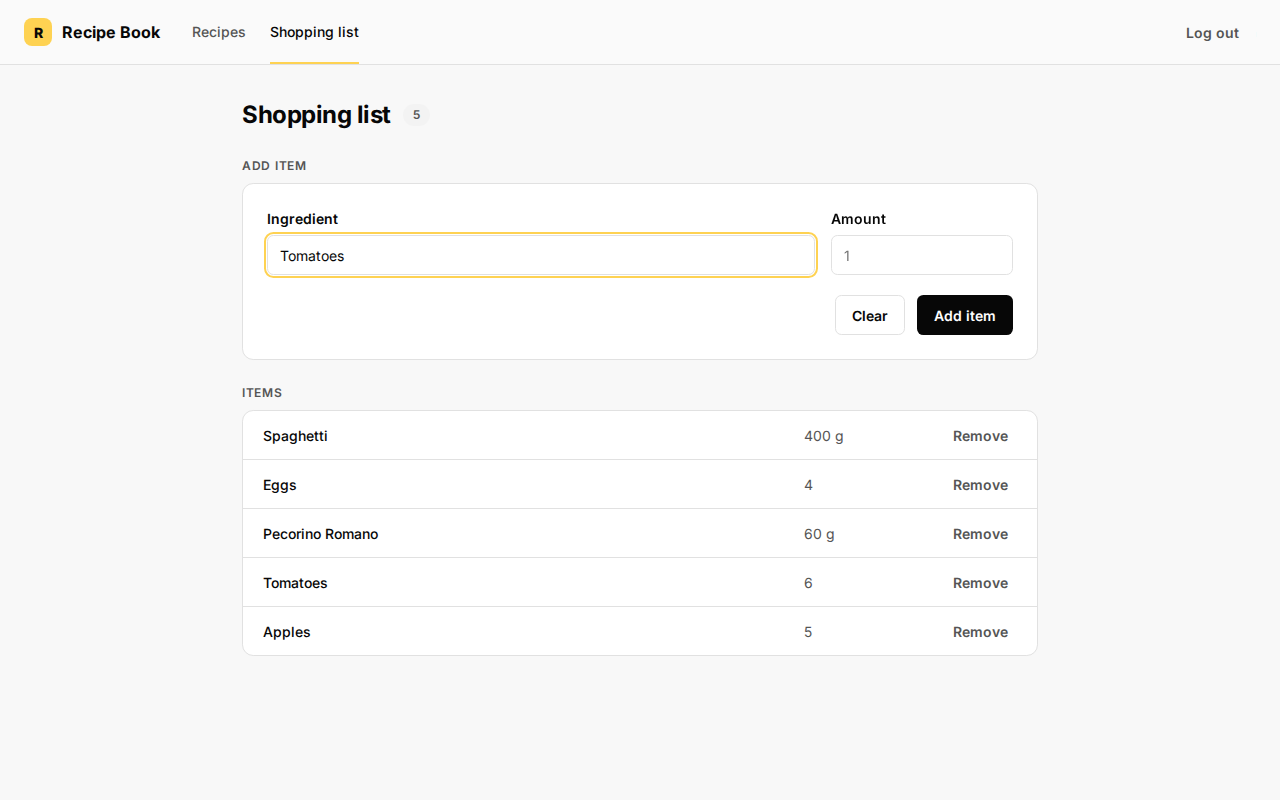
Under Add item, click the Ingredient field (placeholder: e.g. Tomatoes). Type the name, for example Tomatoes.
Step 4 — Enter an amount
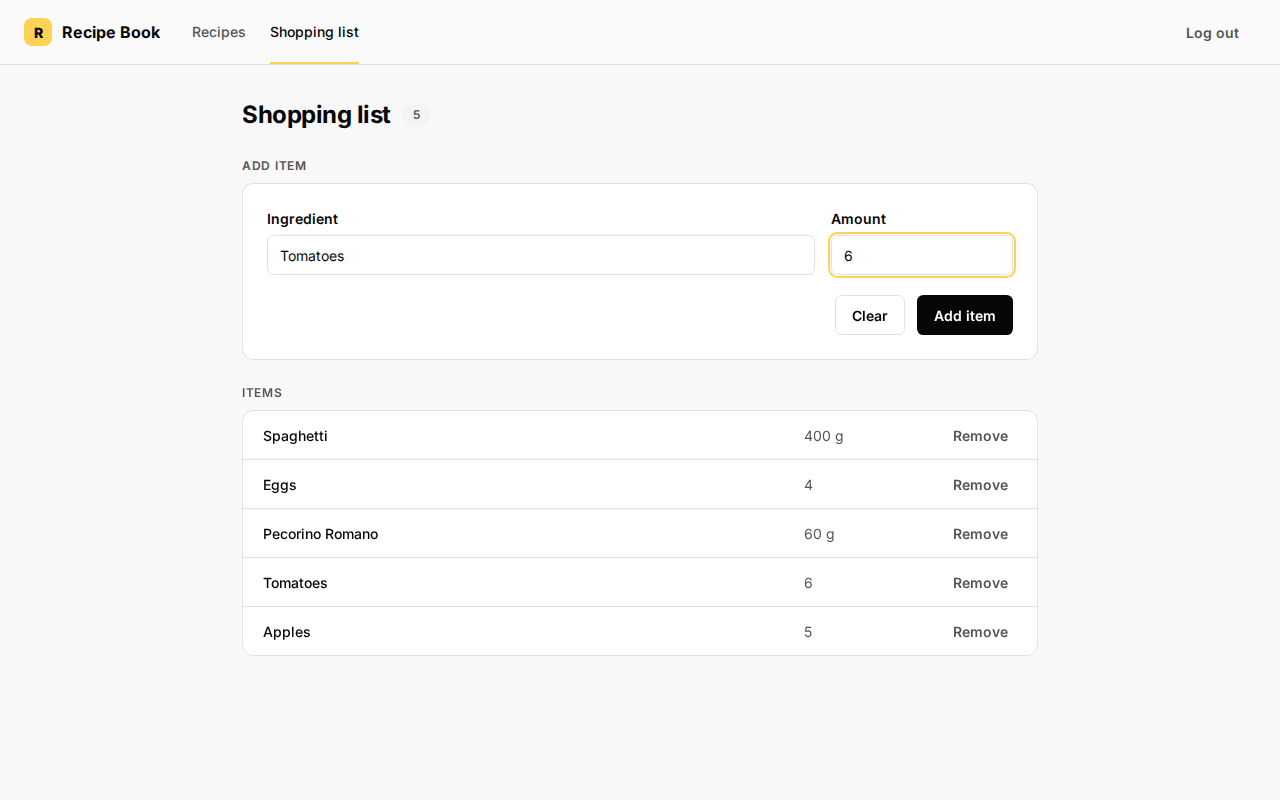
Click the Amount field. Type how much you need, for example 6.
If you leave Amount empty and still click Add item, the app uses 1.
Step 5 — Add the item
Click the blue Add item button on the right under the form.
Success looks like this:
- A new line appears in the Items table at the bottom.
- The Ingredient and Amount fields become empty again.
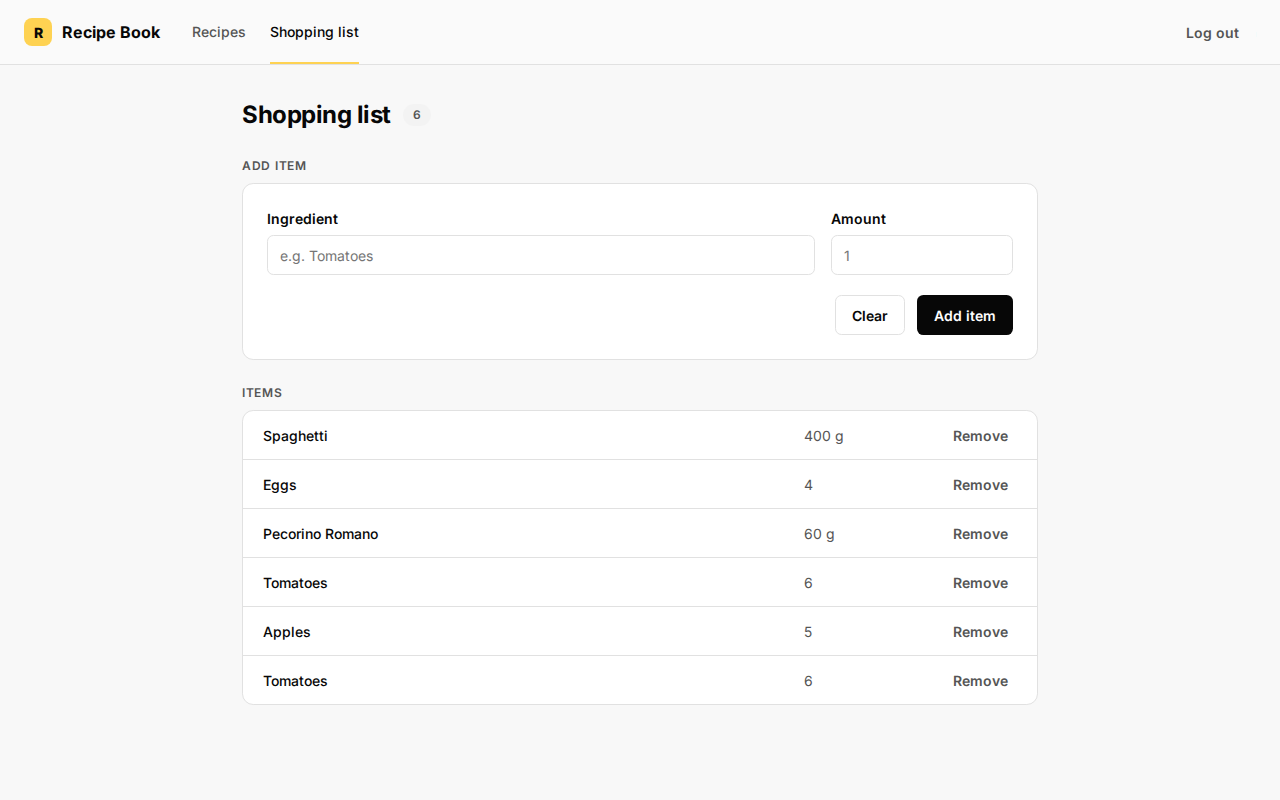
To clear the fields without saving, click Clear instead of Add item.